> ## Documentation Index
> Fetch the complete documentation index at: https://www.anything.com/docs/llms.txt
> Use this file to discover all available pages before exploring further.
# Google Sign In
> Let users sign in to your app with their Google account
Let users sign in to your app with their Google accounts. They'll share their email, name, profile picture, and language settings.
**Google Auth is not yet available for mobile apps.** We are working on this feature. Currently, Google Sign In only works for web apps published to custom domains.
You'll need to set up a few things in Google first, then add those settings to Anything.
## Before you start
Make sure you have:
An Anything project with [User Accounts](/apps/auth) turned on
Your app running on a custom domain through [Anything's domain setup](/launch/domains)
Google Sign In needs a custom domain - you can't use the default `created.app` domains. You'll need:
* A domain you own
* [Anything Pro subscription](https://anything.com/pricing)
* DNS records properly configured
## Overview
Set up Google OAuth
Add credentials to Anything
Customize the login button
Make sure login works
## Google Cloud Setup
1. Go to [Google Cloud OAuth Clients](https://console.cloud.google.com/auth/clients)
2. Sign in with your Google account
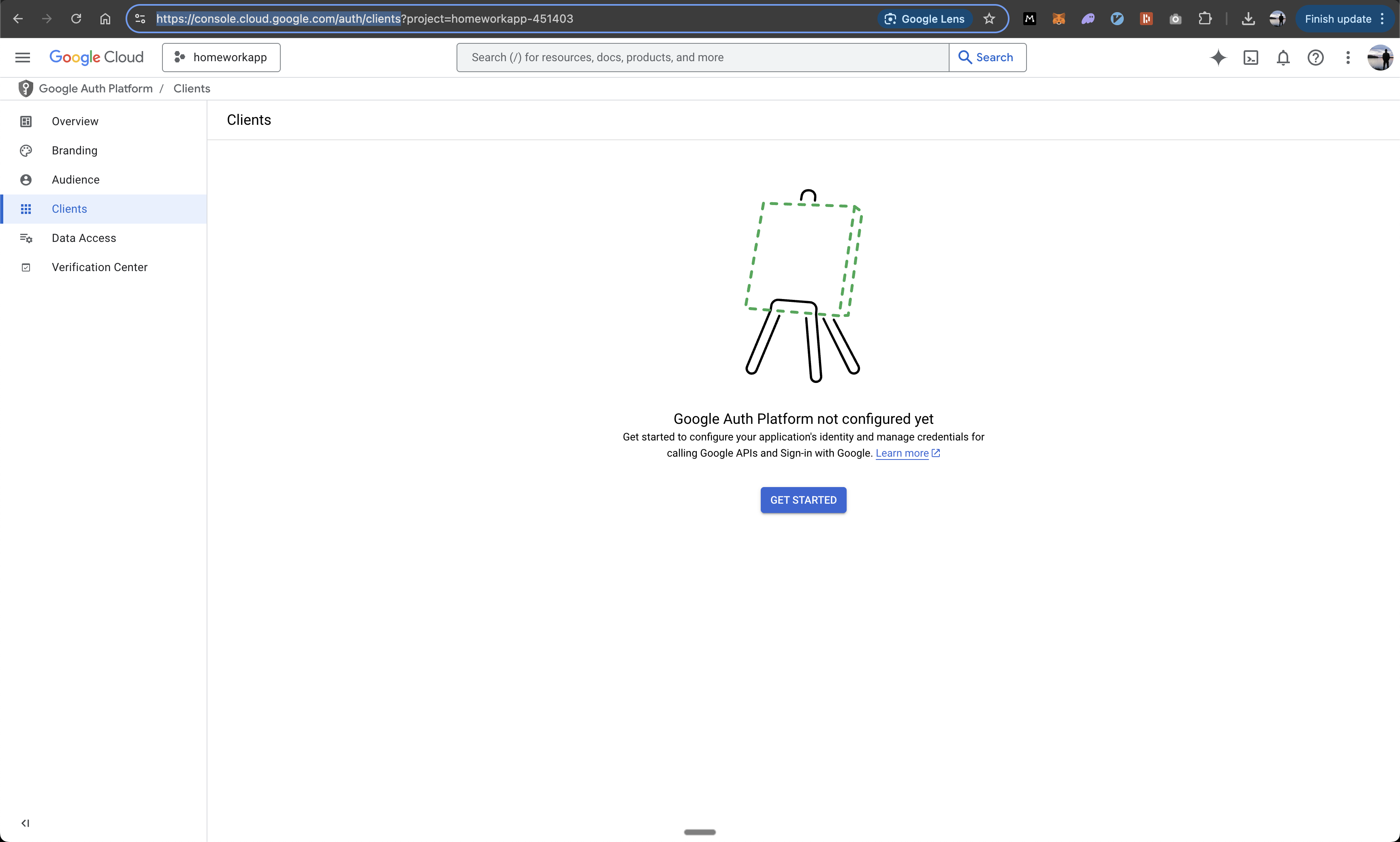 1. Click the project selector dropdown
2. Choose to create a new project or select an existing one
1. Click the project selector dropdown
2. Choose to create a new project or select an existing one
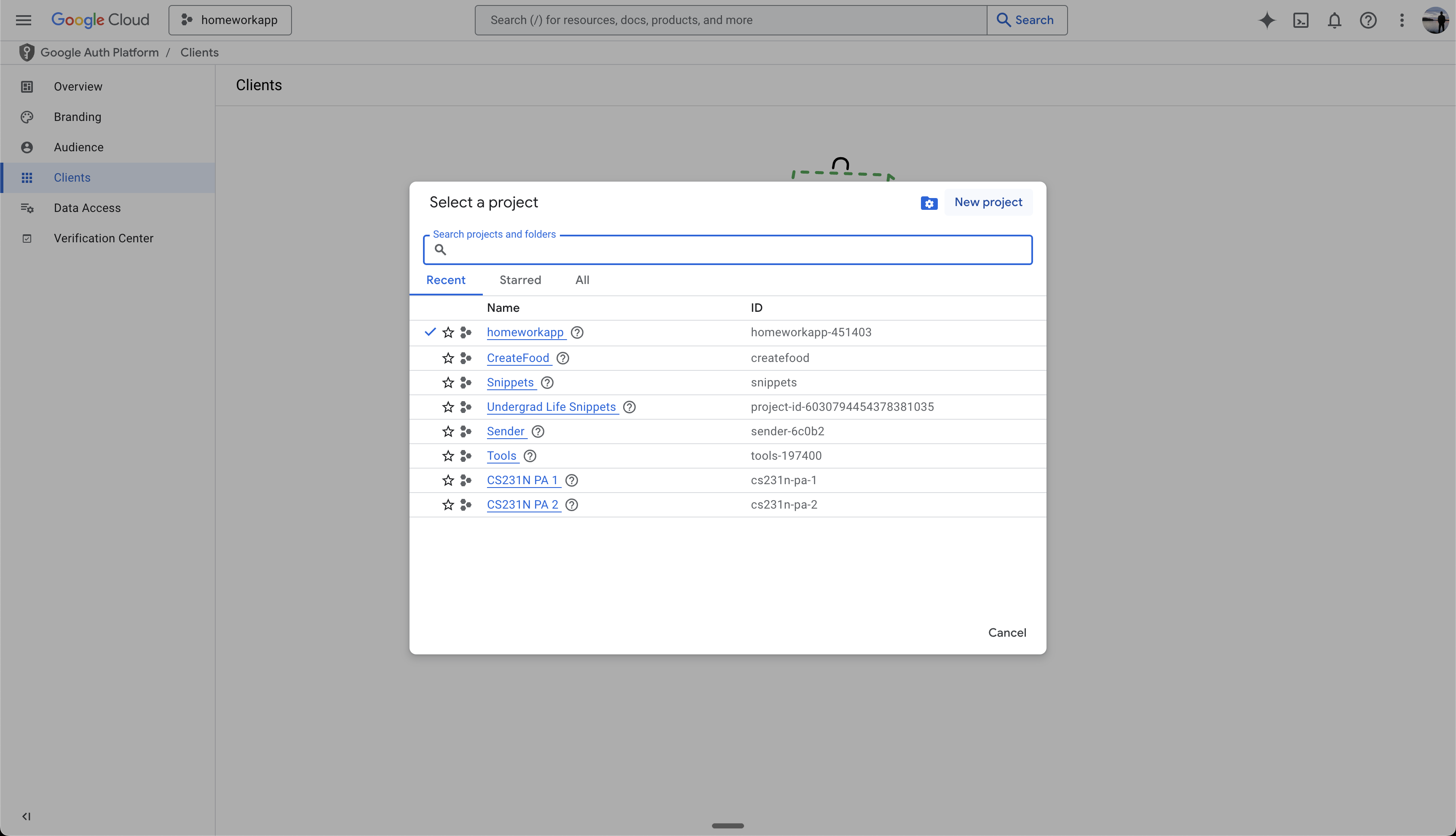 1. If creating new: Enter a recognizable project name (internal use only)
2. Choose whether to add it to an existing Organization or "No organization"
3. Click "Create"
1. If creating new: Enter a recognizable project name (internal use only)
2. Choose whether to add it to an existing Organization or "No organization"
3. Click "Create"
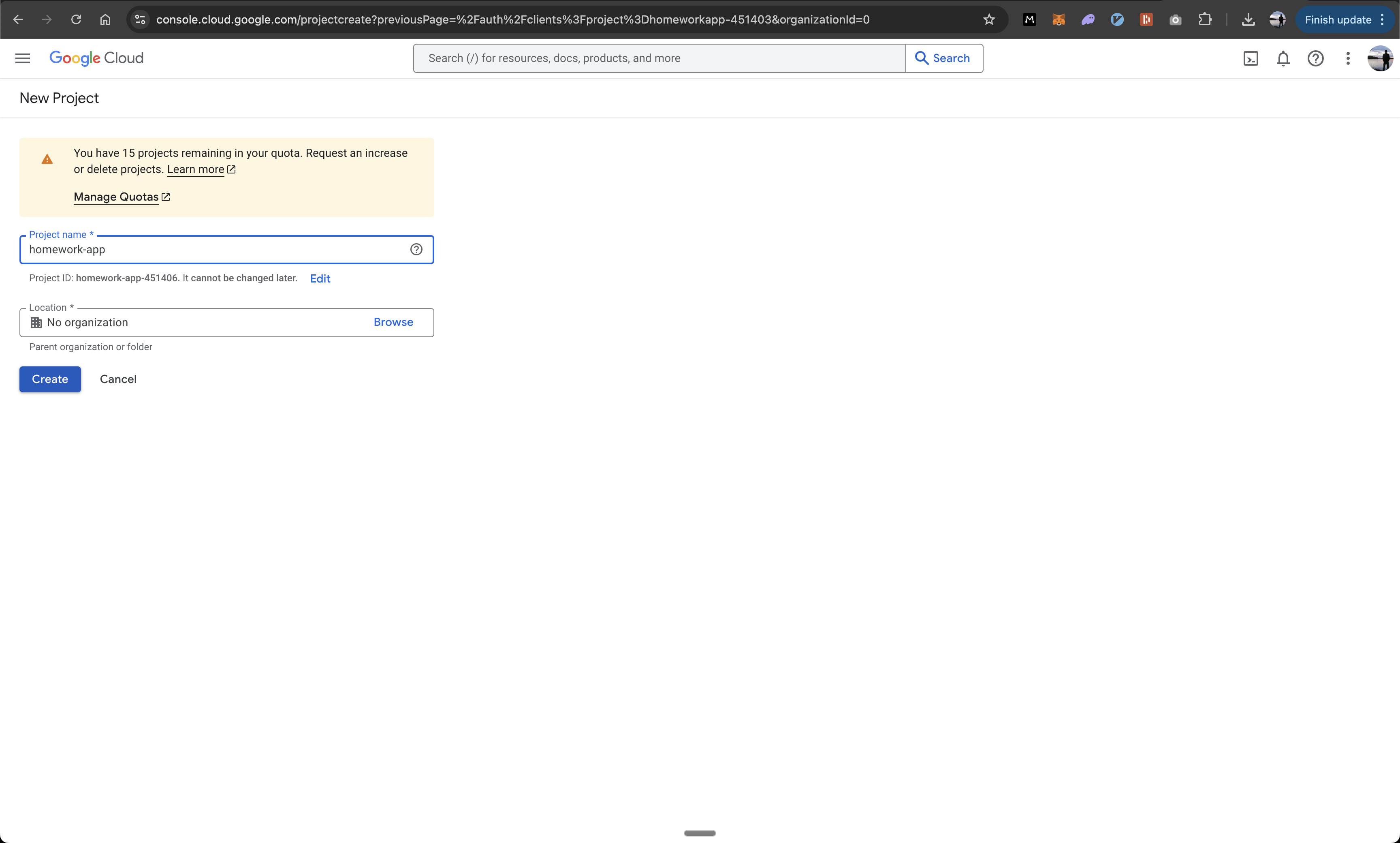 1. Once project is selected/created
2. Click "Get Started" on the Google Auth Platform screen
1. Once project is selected/created
2. Click "Get Started" on the Google Auth Platform screen
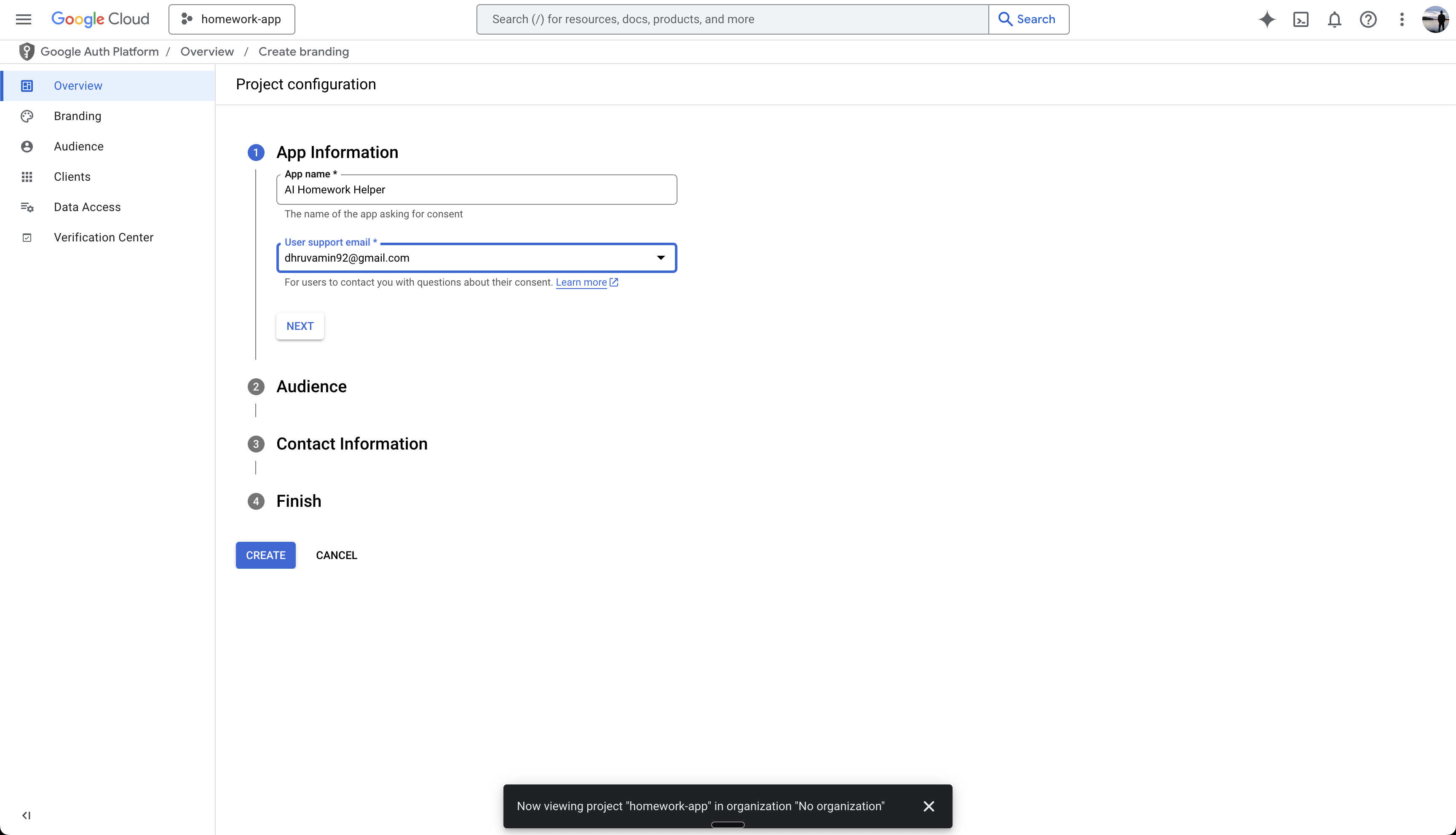
 1. Enter your App Name (this will be public-facing)
2. Add a support email address (this will be public-facing)
1. Enter your App Name (this will be public-facing)
2. Add a support email address (this will be public-facing)
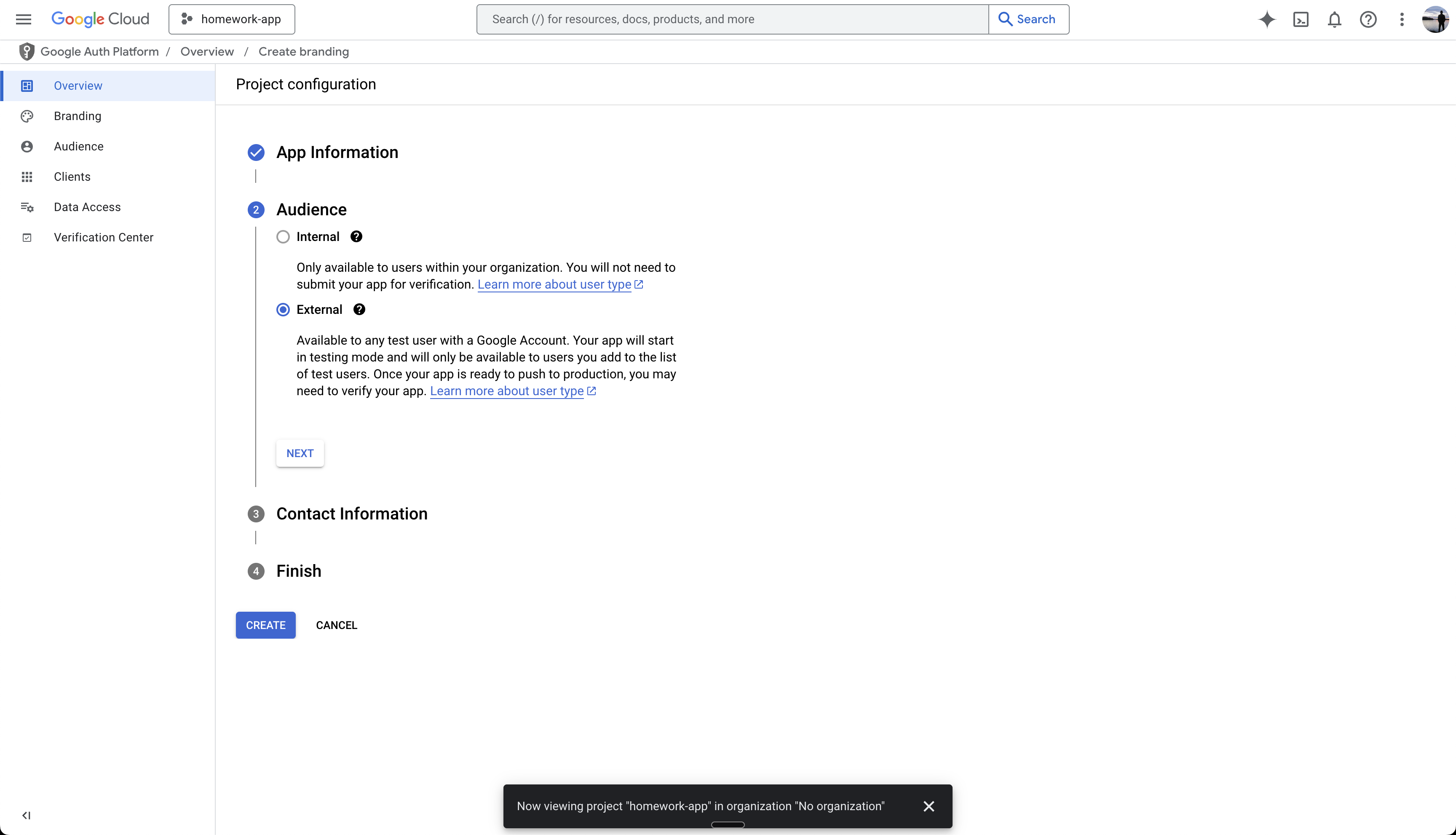
 1. Choose your app's audience
2. Select "External" unless this is an internal app for your Google Workspace organization
1. Choose your app's audience
2. Select "External" unless this is an internal app for your Google Workspace organization
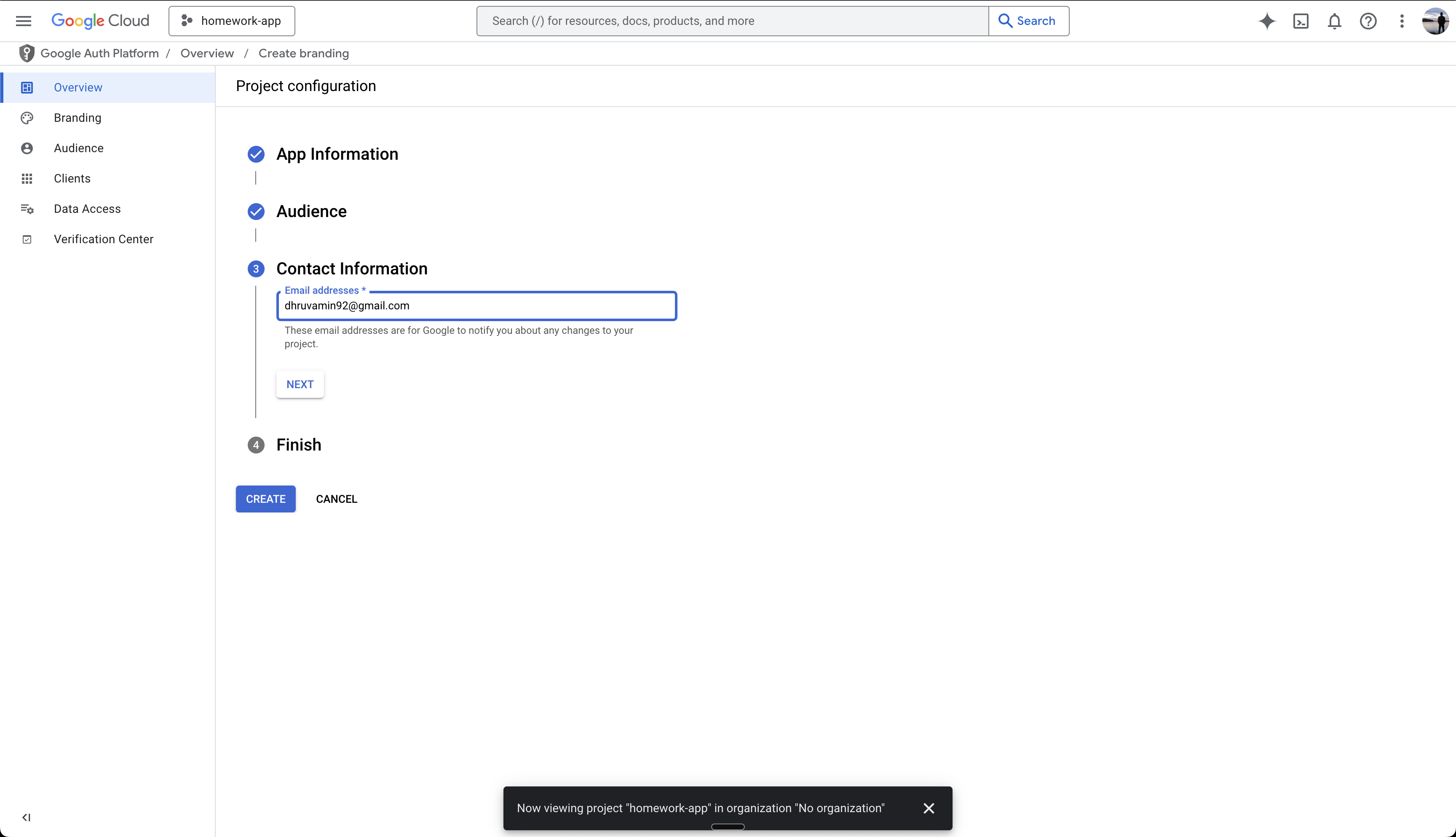
 1. Enter developer contact email address
2. This will be used by Google to contact you about your application
1. Enter developer contact email address
2. This will be used by Google to contact you about your application
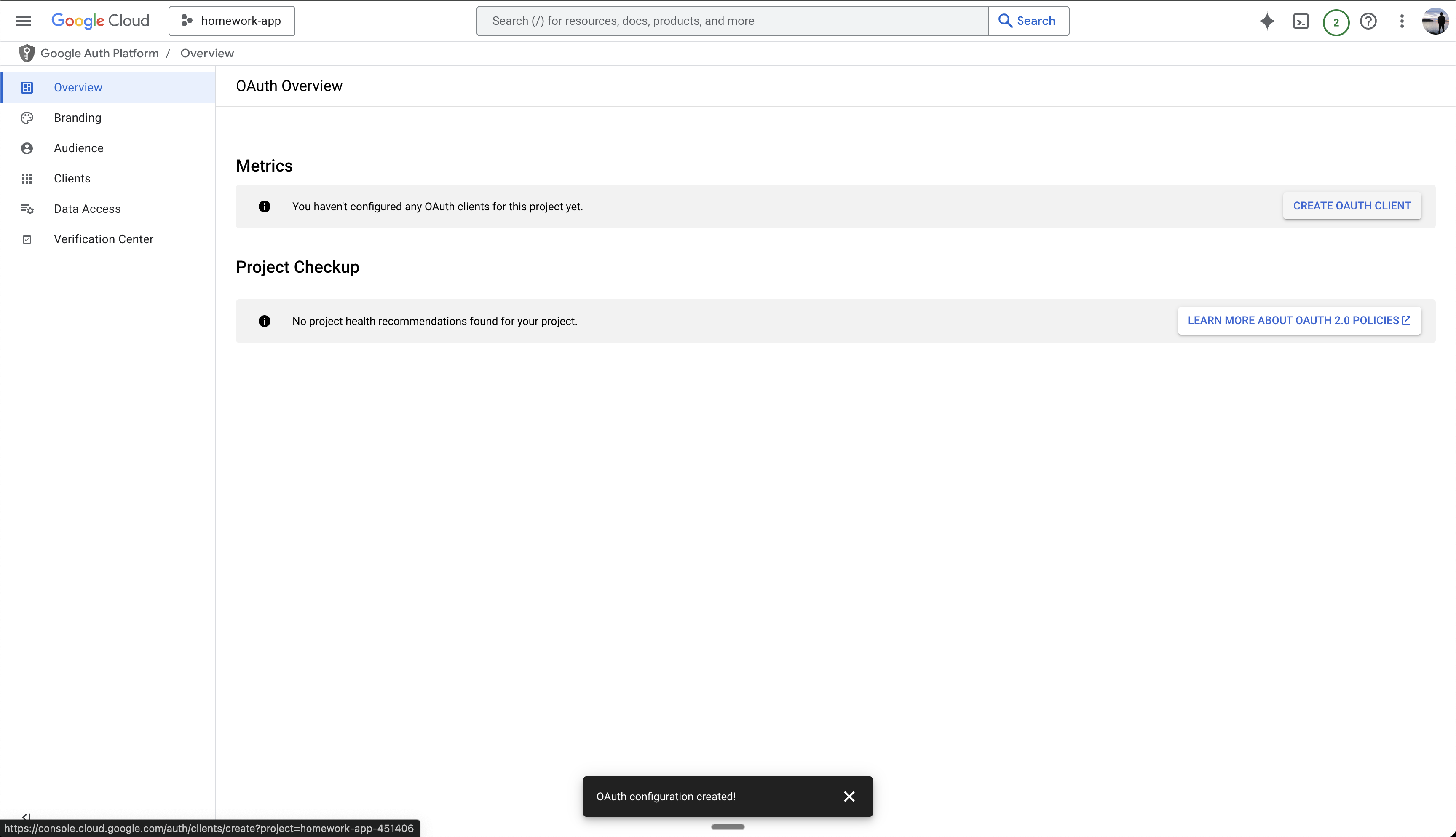
 1. Navigate to credentials section
2. Click "Create OAuth Client"
1. Navigate to credentials section
2. Click "Create OAuth Client"
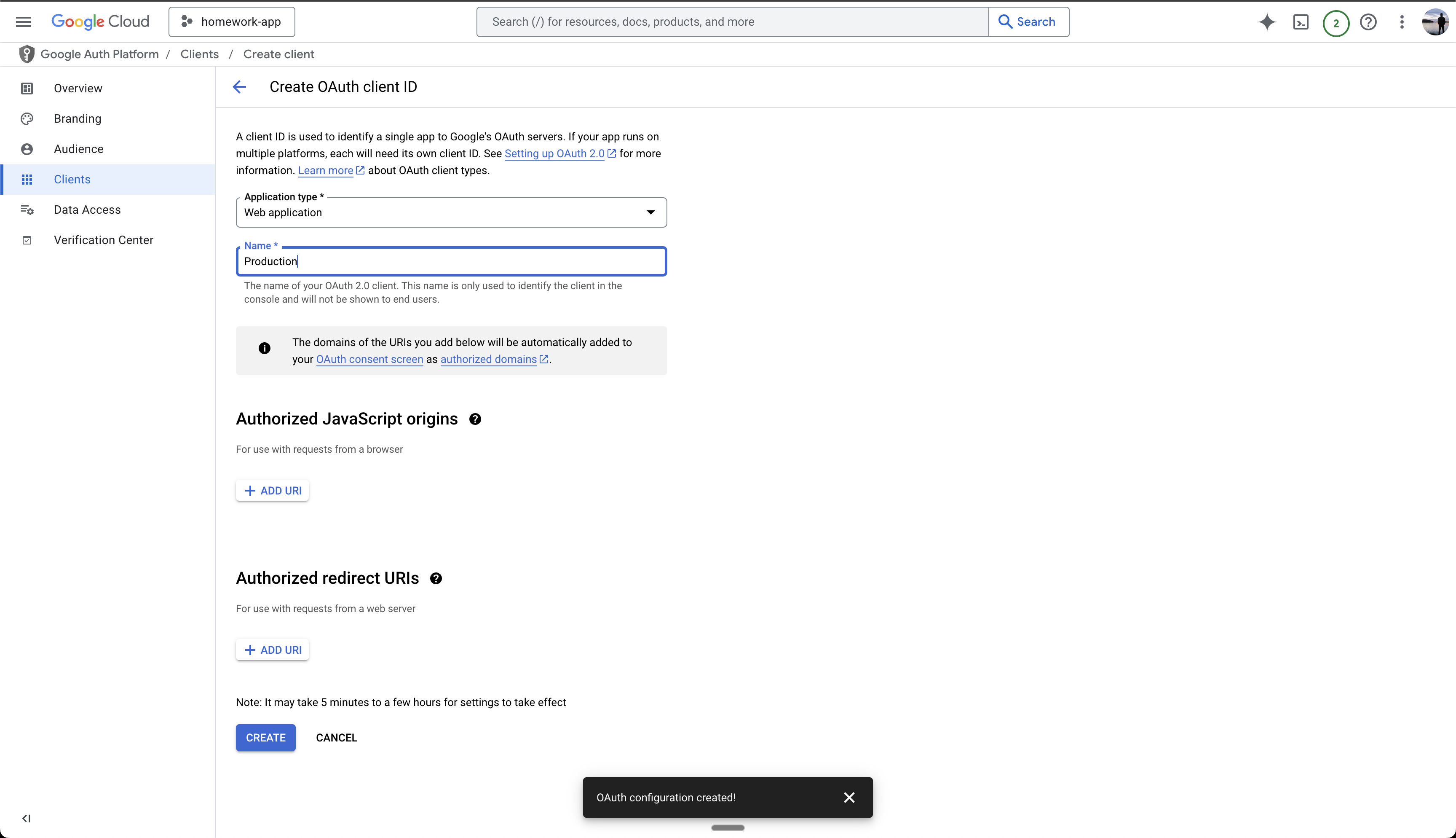
 1. Select "Web Application" as the application type
2. Name your client (e.g., "Production")
1. Select "Web Application" as the application type
2. Name your client (e.g., "Production")
 1. Add `https://www.your-custom-domain.com` as an Authorized JavaScript Origin (replace with your actual domain)
2. Add `https://www.your-custom-domain.com/api/auth/callback/google` as an Authorized redirect URI
1. Add `https://www.your-custom-domain.com` as an Authorized JavaScript Origin (replace with your actual domain)
2. Add `https://www.your-custom-domain.com/api/auth/callback/google` as an Authorized redirect URI
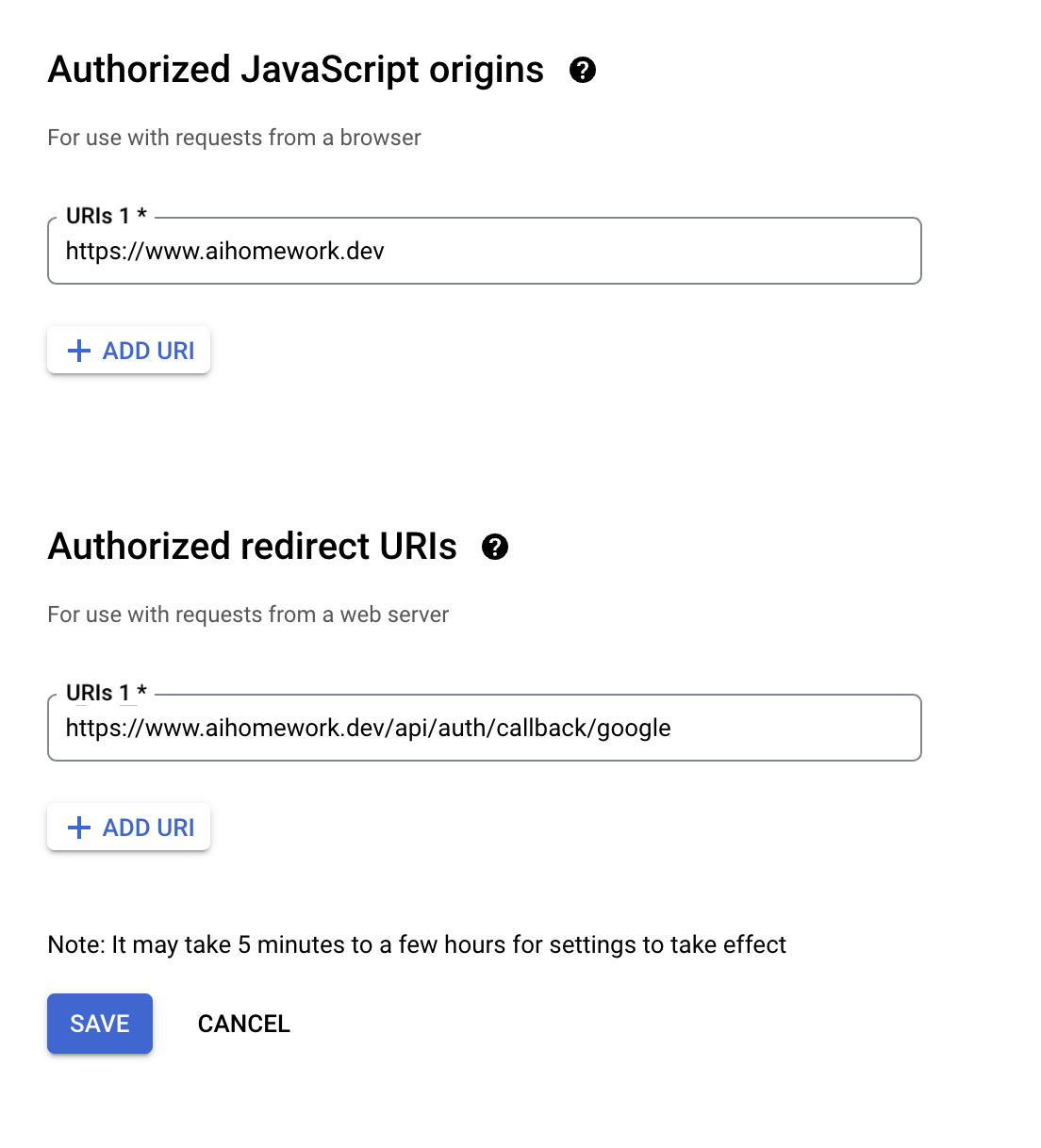 Must include:
* `https://` protocol prefix in both fields
* `www` prefix in both fields
* Exact domain used for the app in Anything's custom domain settings
* Valid CNAME record for `www` subdomain configured in DNS ([see Domains guide](/launch/domains#connect-an-existing-domain))
1. Create the OAuth Client
2. Copy the generated Client ID
3. Save it for adding to your Anything project later
Must include:
* `https://` protocol prefix in both fields
* `www` prefix in both fields
* Exact domain used for the app in Anything's custom domain settings
* Valid CNAME record for `www` subdomain configured in DNS ([see Domains guide](/launch/domains#connect-an-existing-domain))
1. Create the OAuth Client
2. Copy the generated Client ID
3. Save it for adding to your Anything project later
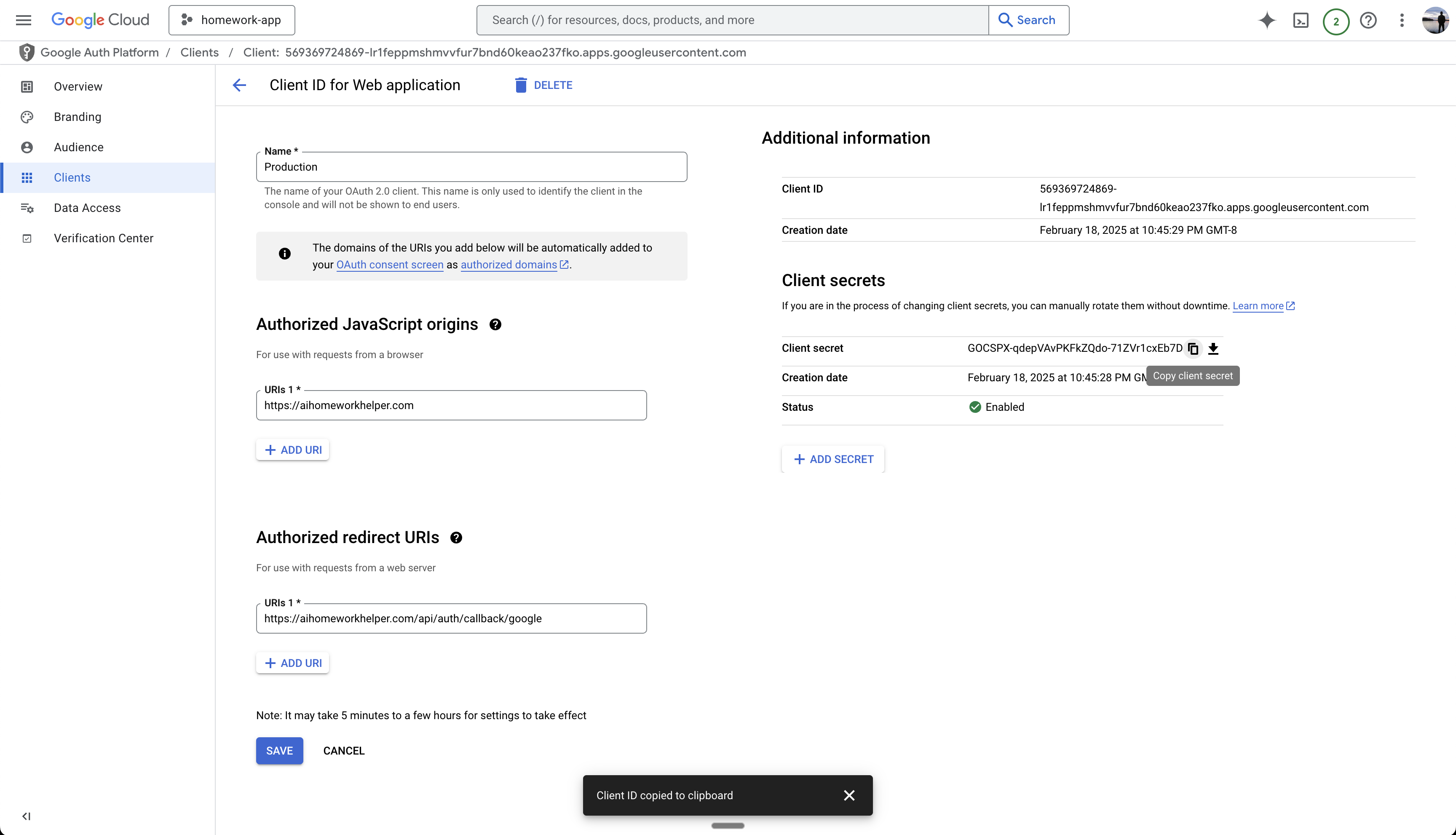
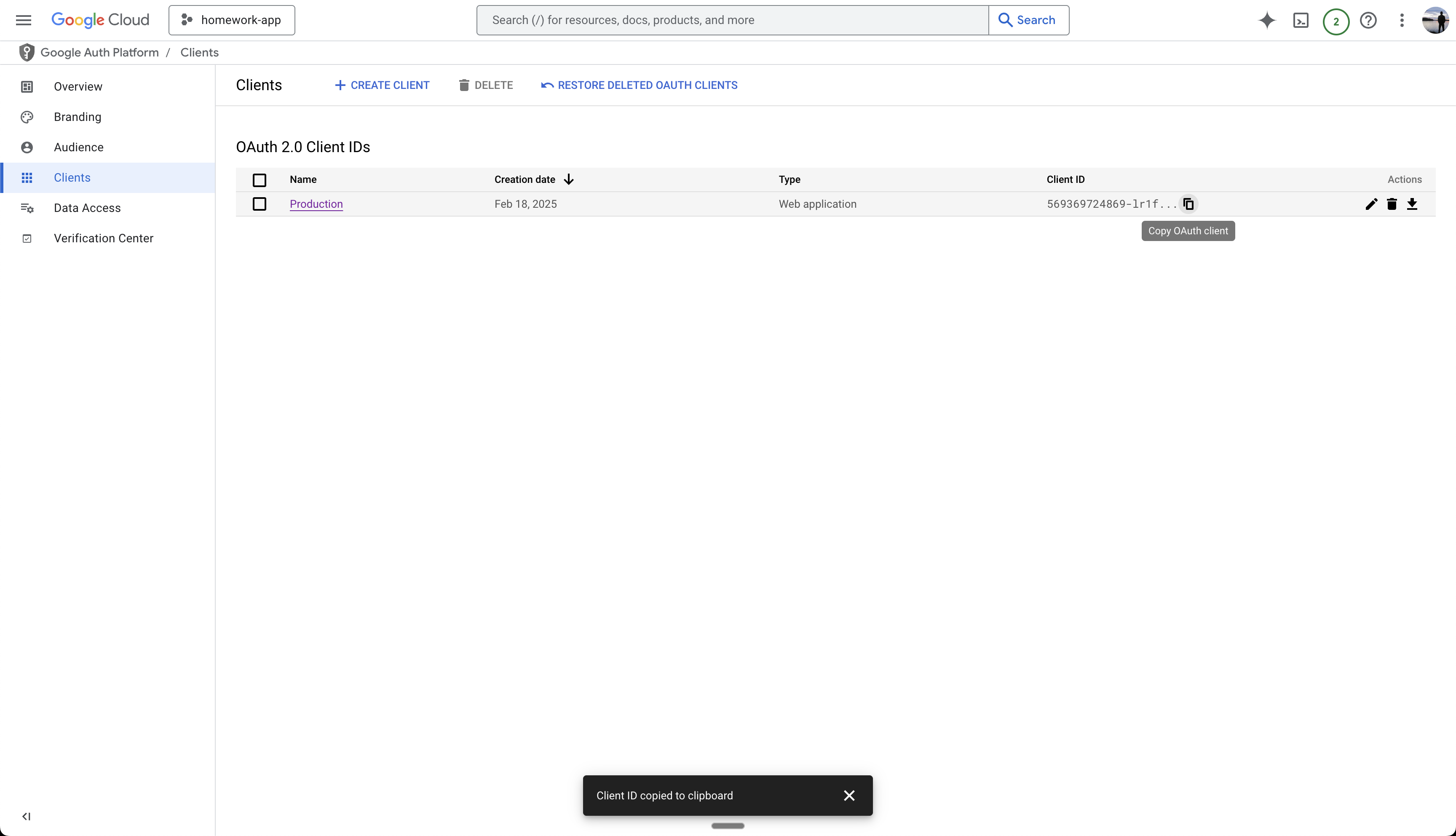 1. Click the Edit button
2. Copy the Client Secret
3. Save it for adding to your Anything project later
1. Click the Edit button
2. Copy the Client Secret
3. Save it for adding to your Anything project later
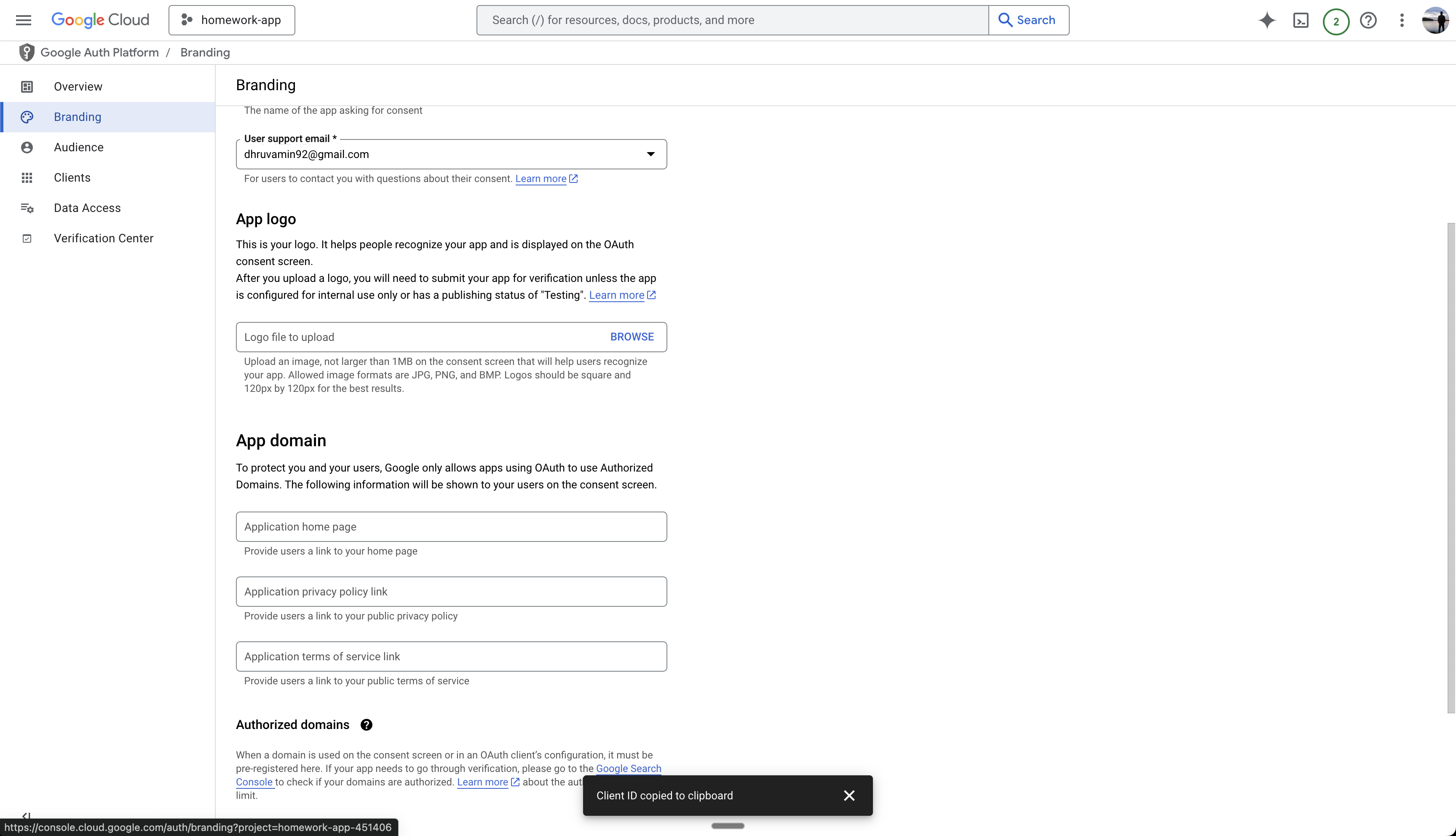
 1. Navigate to the Branding section
2. Add your app domain, privacy policy, and terms
3. These will appear on the Google Sign In page
1. Navigate to the Branding section
2. Add your app domain, privacy policy, and terms
3. These will appear on the Google Sign In page
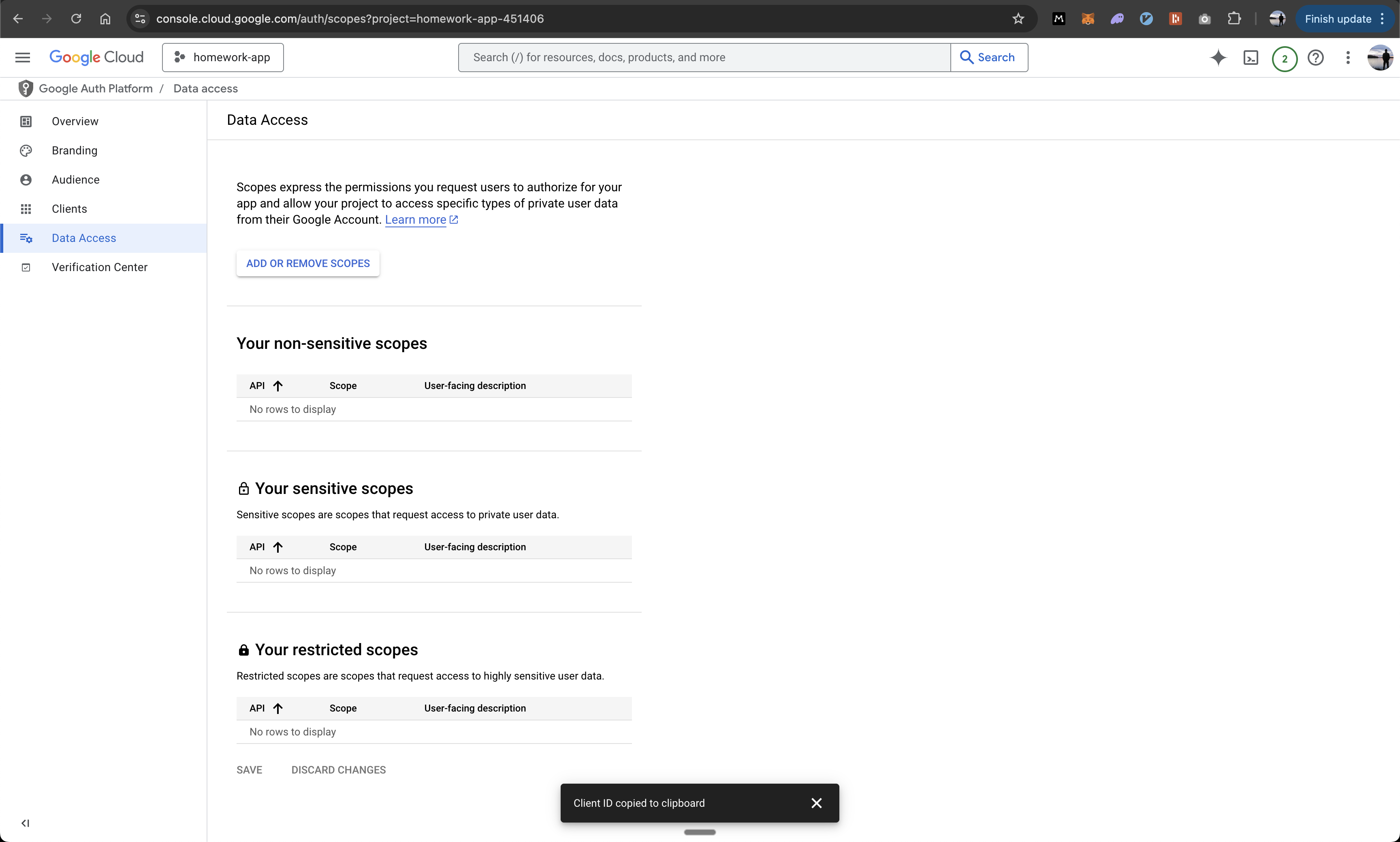
 1. If your app needs additional permissions
2. Request additional scopes as needed
1. If your app needs additional permissions
2. Request additional scopes as needed
 Before going live, submit your app for verification in the Verification Center.
This is required for external Google users to sign in to your app.
## Add to Anything project
You have two options:
1. Prompt Anything with "Let users sign in"
2. Enable User Accounts from the logo menu
User Accounts must be enabled before proceeding with Google Sign In setup
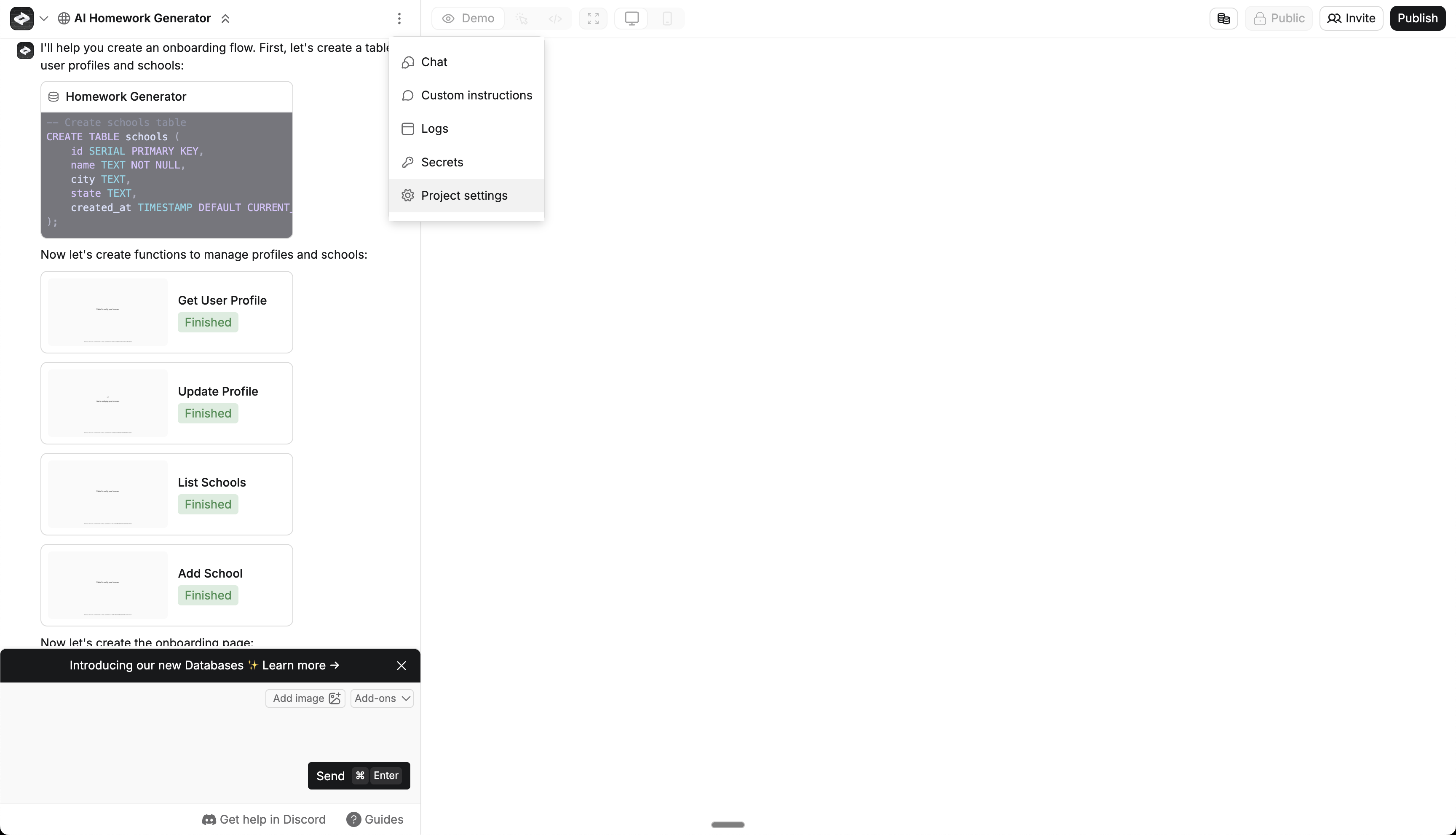
1. Click the 3-dot menu at the top of the chat
2. Select "Project Settings"
Before going live, submit your app for verification in the Verification Center.
This is required for external Google users to sign in to your app.
## Add to Anything project
You have two options:
1. Prompt Anything with "Let users sign in"
2. Enable User Accounts from the logo menu
User Accounts must be enabled before proceeding with Google Sign In setup
1. Click the 3-dot menu at the top of the chat
2. Select "Project Settings"
 1. Navigate to the Authentication section
2. Find Google Sign In toggle
3. Make sure it's turned on
1. Navigate to the Authentication section
2. Find Google Sign In toggle
3. Make sure it's turned on
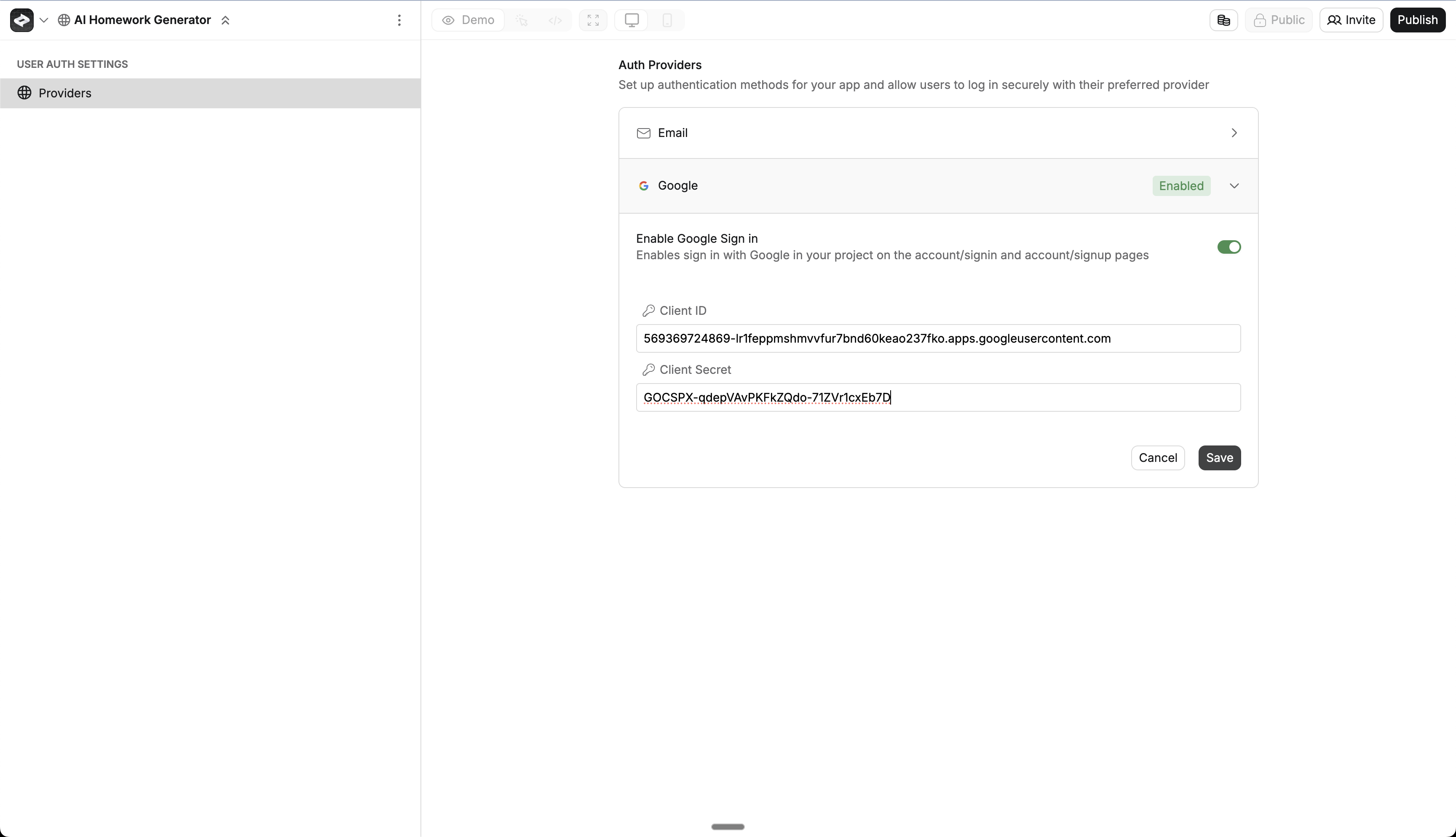
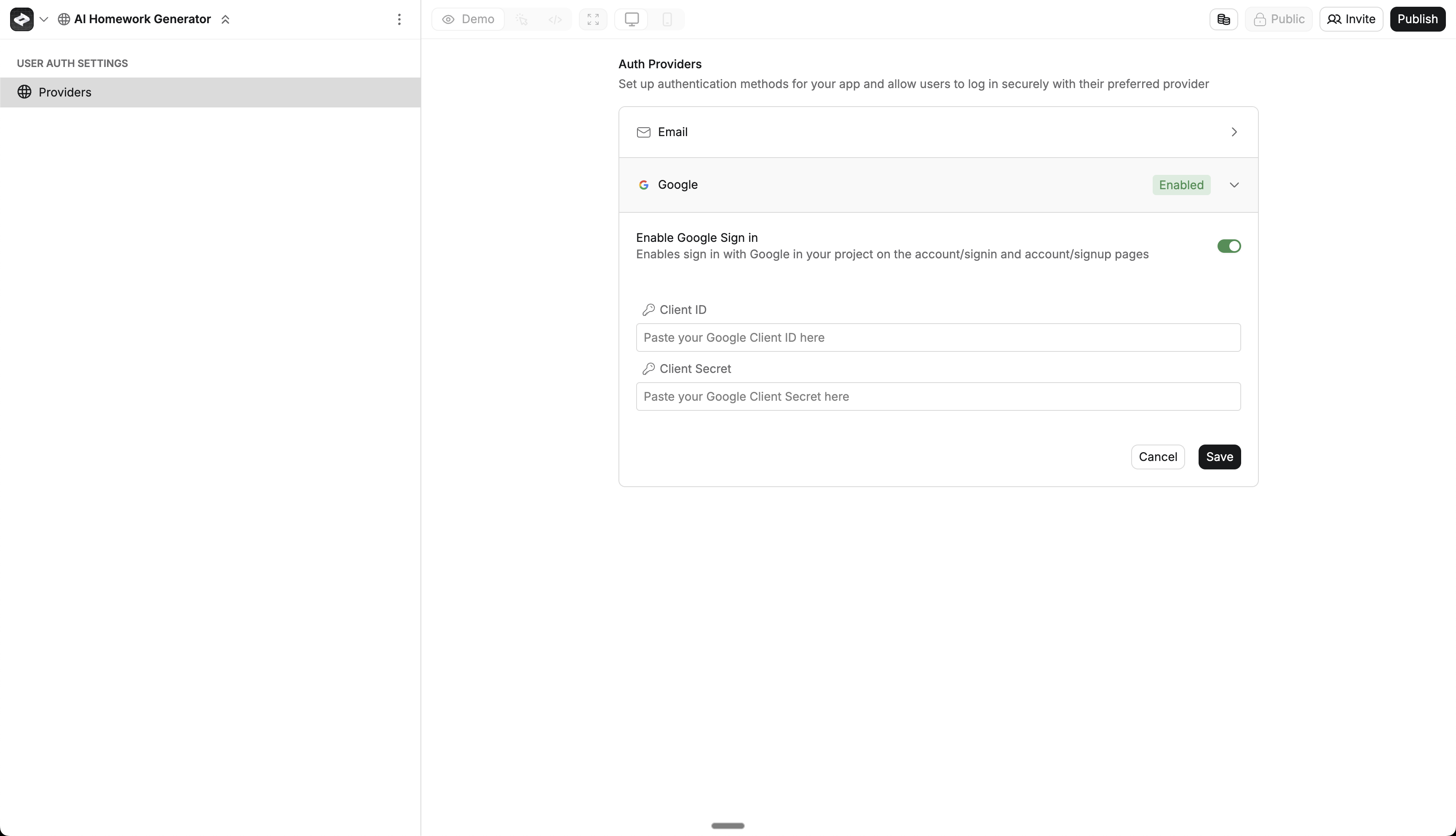 1. Paste in your Client ID from the previous section
2. Paste in your Client Secret from the previous section
3. Click Save to store your credentials
1. Paste in your Client ID from the previous section
2. Paste in your Client Secret from the previous section
3. Click Save to store your credentials
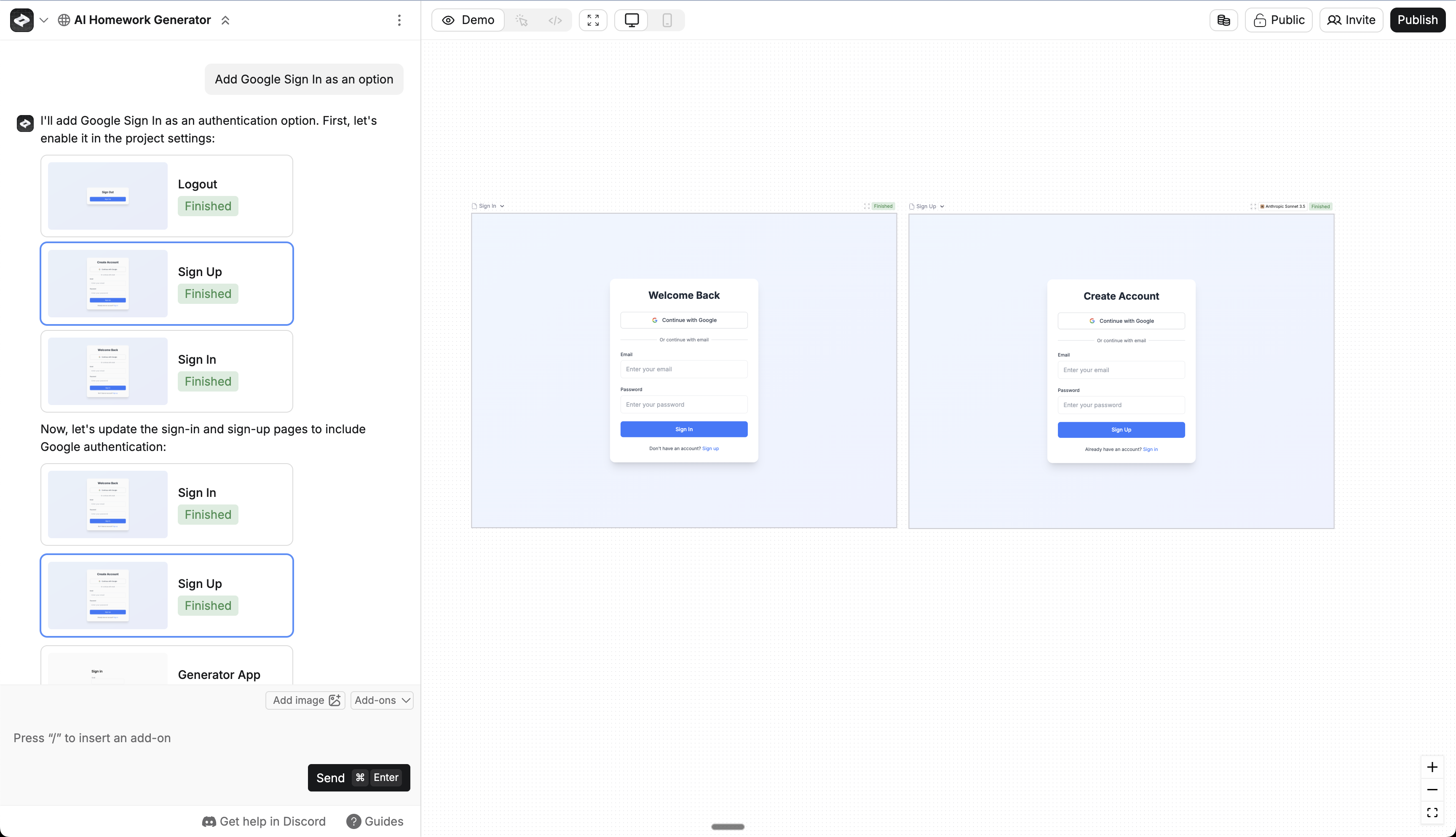
 1. Return to the chat
2. Prompt Anything with something like "Add Google Sign In as an option"
3. Anything will automatically update your sign-in pages with Google Sign In
4. You can customize the UI further if you'd like.
1. Return to the chat
2. Prompt Anything with something like "Add Google Sign In as an option"
3. Anything will automatically update your sign-in pages with Google Sign In
4. You can customize the UI further if you'd like.
 1. Click the Publish button
2. Review your changes
3. Publish to make the Google Sign In feature live
1. Open your published app in an incognito window
2. Navigate to the sign-in page
3. Click the Google Sign In button
4. Complete the Google authentication flow
5. Verify you're successfully logged in to your app
6. Check the user is logged in by looking at the [auth\_users table](/apps/databases) in your database
Always test the authentication flow in an incognito window to ensure it works for new users
## Testing
1. Publish your changes
2. Open your app in a new incognito window
3. Go to the sign in page
4. Try signing in with Google
5. Check the [auth\_users table](/apps/databases) to see your new user
## Troubleshooting
* Check if User Accounts is turned on
* Make sure Google Sign In is enabled in Project Settings
* Try publishing your changes again
* Clear your browser data and try in incognito mode
1. Click the Publish button
2. Review your changes
3. Publish to make the Google Sign In feature live
1. Open your published app in an incognito window
2. Navigate to the sign-in page
3. Click the Google Sign In button
4. Complete the Google authentication flow
5. Verify you're successfully logged in to your app
6. Check the user is logged in by looking at the [auth\_users table](/apps/databases) in your database
Always test the authentication flow in an incognito window to ensure it works for new users
## Testing
1. Publish your changes
2. Open your app in a new incognito window
3. Go to the sign in page
4. Try signing in with Google
5. Check the [auth\_users table](/apps/databases) to see your new user
## Troubleshooting
* Check if User Accounts is turned on
* Make sure Google Sign In is enabled in Project Settings
* Try publishing your changes again
* Clear your browser data and try in incognito mode
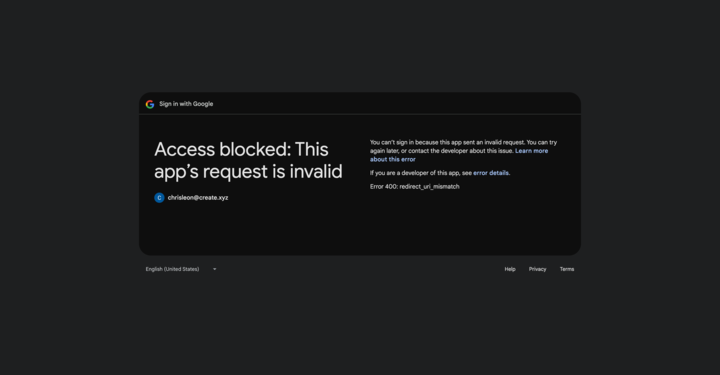
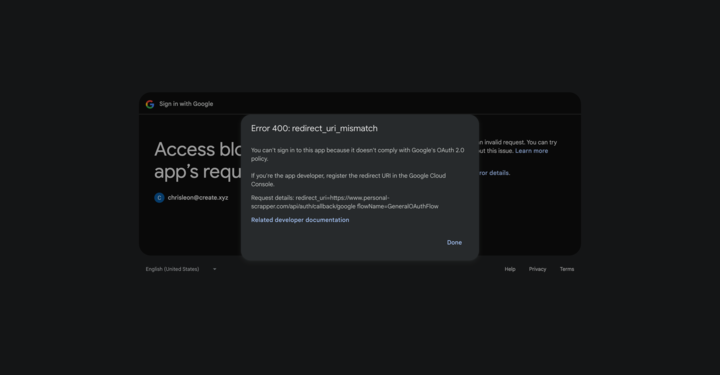 * Check that your Client ID and Client Secret are correctly pasted in Anything
* Ensure your domain is added as an Authorized JavaScript Origin in Google Cloud
* Verify your app is published and accessible at your custom domain
In Google Cloud, always use '[https://www.your-domain.com](https://www.your-domain.com)' not just 'your-domain.com'. Many login problems happen because people forget the 'https\://' protocol and 'www' prefix.
* Double check your domain is exactly the same in Anything and Google Cloud
* Make sure your callback URL is right: `https://www.[your-domain].com/api/auth/callback/google`
* Check if your Client ID and Secret are pasted correctly
* Make sure your domain is set up in Google Cloud
* Make sure your app is live at your custom domain
* This is normal during testing
* You can test with up to 100 users
* For a live app, you'll need Google to verify it
* Fill out all the info Google asks for
* Update the Authorized JavaScript Origins in Google Cloud
* Update the Authorized redirect URIs in Google Cloud
* Update your domain in the OAuth consent screen
* Re-publish your app on the new domain
## FAQ
No, Google Sign In needs your own domain. You'll need:
* A domain you own
* Anything Pro subscription
* Properly configured DNS records
By default:
* Email address
* Name
* Profile picture (if they have one)
Additional information requires requesting extra scopes in Google Cloud Console.
Yes! Just:
1. Go back to chat
2. Tell Anything how you want it to look
3. Anything will help style it while following Google's rules
* For testing (up to 100 users): No
* For a live app: Yes
* Internal Google Workspace apps: No
1. Go to Google Cloud Console OAuth consent screen
2. Add additional scopes in the "Scopes" section
3. Provide justification for each scope
4. Note: Additional scopes may require Google verification
Yes! Configure your app as "Internal" in Google Cloud Console to unlock enterprise features:
* **Skip verification** - No Google app review required
* **Automatic user sync** - Users managed through your Google Workspace
* **Built-in permissions** - Use Google Workspace groups and roles
* **Enterprise SSO** - Seamless sign-in with existing credentials
Perfect for internal dashboards, employee portals, and any app where you need to restrict access to your organization.
## See Also
* [User Accounts](/apps/auth)
* [Customizing Login Pages](/apps/auth#customizing-auth-pages)
* Check that your Client ID and Client Secret are correctly pasted in Anything
* Ensure your domain is added as an Authorized JavaScript Origin in Google Cloud
* Verify your app is published and accessible at your custom domain
In Google Cloud, always use '[https://www.your-domain.com](https://www.your-domain.com)' not just 'your-domain.com'. Many login problems happen because people forget the 'https\://' protocol and 'www' prefix.
* Double check your domain is exactly the same in Anything and Google Cloud
* Make sure your callback URL is right: `https://www.[your-domain].com/api/auth/callback/google`
* Check if your Client ID and Secret are pasted correctly
* Make sure your domain is set up in Google Cloud
* Make sure your app is live at your custom domain
* This is normal during testing
* You can test with up to 100 users
* For a live app, you'll need Google to verify it
* Fill out all the info Google asks for
* Update the Authorized JavaScript Origins in Google Cloud
* Update the Authorized redirect URIs in Google Cloud
* Update your domain in the OAuth consent screen
* Re-publish your app on the new domain
## FAQ
No, Google Sign In needs your own domain. You'll need:
* A domain you own
* Anything Pro subscription
* Properly configured DNS records
By default:
* Email address
* Name
* Profile picture (if they have one)
Additional information requires requesting extra scopes in Google Cloud Console.
Yes! Just:
1. Go back to chat
2. Tell Anything how you want it to look
3. Anything will help style it while following Google's rules
* For testing (up to 100 users): No
* For a live app: Yes
* Internal Google Workspace apps: No
1. Go to Google Cloud Console OAuth consent screen
2. Add additional scopes in the "Scopes" section
3. Provide justification for each scope
4. Note: Additional scopes may require Google verification
Yes! Configure your app as "Internal" in Google Cloud Console to unlock enterprise features:
* **Skip verification** - No Google app review required
* **Automatic user sync** - Users managed through your Google Workspace
* **Built-in permissions** - Use Google Workspace groups and roles
* **Enterprise SSO** - Seamless sign-in with existing credentials
Perfect for internal dashboards, employee portals, and any app where you need to restrict access to your organization.
## See Also
* [User Accounts](/apps/auth)
* [Customizing Login Pages](/apps/auth#customizing-auth-pages)